BigMP4 Blog
How to Make Smooth Slow Motion from an MP4
Smooth slow motion needs intermediate frames, not just slower playback. BigMP4 combines frame interpolation with a slow-motion option; use a short test to see how the result handles your particular movement.
Keep your original video. AI processing can estimate detail and may introduce artifacts; review the output before relying on it.
How AI slow motion differs from slowing playback
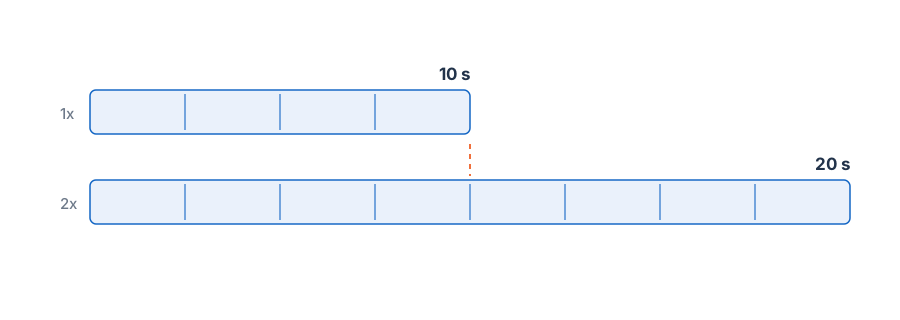
Simply lowering playback speed repeats or stretches existing frames, which often looks choppy. Frame interpolation estimates additional frames between the source frames. BigMP4’s slow-motion checkbox is available after choosing an interpolation factor and is intended to keep the frame rate while extending playback time.
The new frames are predictions. A clean, well-lit clip with continuous motion is usually easier to interpolate than fast action with blur, occlusions, or abrupt cuts. Do not treat generated motion as evidence of what happened between the camera’s actual exposures.
Set up the MP4 slow-motion task
Open the task settings for the video, select 2x or 4x interpolation, then enable the slow-motion checkbox. The available controls and account requirements are shown in the current BigMP4 task dialog. The multiplier affects the number of generated intermediate frames; it is not a promise of a particular playback duration for every variable-frame-rate file.
Choose a clip with a clear beginning and end. If the action crosses a scene cut, split the footage at that cut before processing so the model does not have to estimate motion between unrelated shots.
- Pick one action A short, continuous movement is easier to judge than a full montage.
- Start at 2x Use 4x only if the added smoothness is worth the extra processing and possible artifacts.
- Turn on slow motion Enable the option in the task dialog after selecting interpolation.
Choose footage that can tolerate interpolation
Inspect the subject’s outline, hands, feet, and any object passing behind another object. These boundaries are common places for estimated frames to bend or merge details. A short test containing the fastest movement is more useful than testing only an easy opening frame.
For a more natural result, avoid combining a difficult source with the strongest interpolation factor just to maximize the slow-down. If the generated motion looks rubbery, use a lower factor or keep the original-speed clip.
Confirm both motion quality and clip duration
Play the result at its intended viewing speed and check the total duration. Because the slow-motion option keeps the output frame rate while adding frames, the clip is expected to run longer than its source; review the final timing before using it in an edit.
Compare the same action in the original and processed file. Keep the original as a reference and choose the version whose motion looks believable, not merely the one with the most frames.