BigMP4 Blog
How to Improve Low-Resolution Video Quality with AI
When a video looks soft or blocky, the cause matters. Upscaling can increase output dimensions and noise reduction can soften grain, but neither can recreate exact scene detail lost to focus, compression, or a small sensor.
Keep your original video. AI processing can estimate detail and may introduce artifacts; review the output before relying on it.
Diagnose why the video looks soft
Low resolution, missed focus, motion blur, compression blocks, and sensor noise need different expectations. Inspect a few frames and watch playback: compression artifacts often form blocks around edges, while motion blur smears moving objects in the direction of travel.
Keep a copy of the original and note its dimensions and frame rate. This gives you a baseline and helps you choose whether the main goal is a larger frame, less visible noise, or smoother motion.
Choose the controls that match the problem
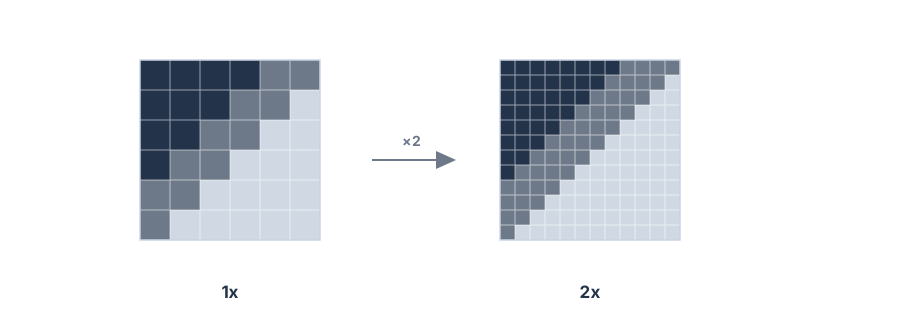
For a display that needs more pixels, try 2x enlargement first; BigMP4 also offers 4x. If crawling grain is the main distraction, test a low noise setting. If motion looks choppy, frame interpolation may help, but it can warp fast movement and requires its own review.
Avoid turning on every option at the strongest level on the first pass. Each operation changes the footage in a different way, and combining them immediately makes unwanted smoothing, edge artifacts, or motion errors harder to diagnose.
- Choose one main goal Decide between larger dimensions, less noise, or more interpolated frames.
- Use a modest setting Try 2x scale or a low noise level before stronger processing.
- Add another control only if needed Repeat a short test so each change is easy to compare.
Test a short clip before the full video
Pick a segment containing the hardest material: a face, fine text, a dark area, and motion if those appear in the full video. Review the output at its intended viewing size, then inspect a few frames closely for synthetic detail or artifacts.
BigMP4 processes the uploaded task using its available options; it is not a full non-linear editor. If you need to crop scenes, correct exposure, stabilize camera shake, or repair damaged frames, prepare the footage with an appropriate editing tool before uploading.
Keep the version that looks natural in motion
Compare the source and output on the same display and at the same playback size. Look for stable edges, natural texture, and consistent motion rather than judging by resolution or frame-rate numbers alone.
When enhancement makes an artifact more obvious, reduce the scale or denoising level, turn off interpolation, or keep the original. A realistic result that fits the viewing use is more useful than an aggressive transformation.