BigMP4 Blog
How to Increase Video FPS with AI Frame Interpolation
AI frame interpolation inserts estimated frames between recorded frames to raise the output frame rate. It can make some motion look smoother, but quick movement and scene changes need careful review.
Keep your original video. AI processing can estimate detail and may introduce artifacts; review the output before relying on it.
What AI frame interpolation changes
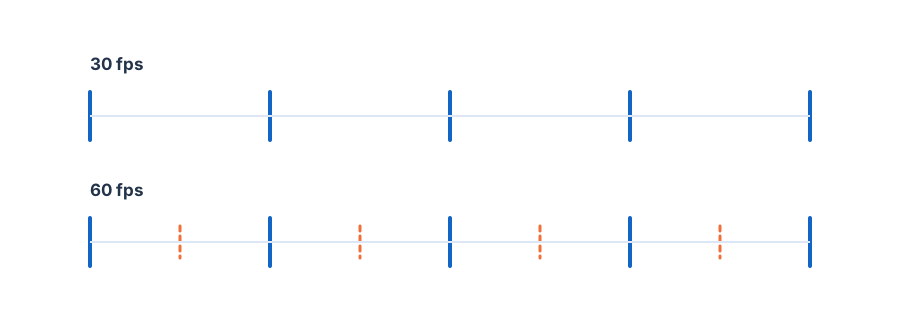
Interpolation creates intermediate frames based on neighboring frames; it does not change the camera capture or reveal the exact motion between moments that were never recorded. BigMP4 exposes 2x and 4x interpolation factors for video tasks, so the nominal output rate depends on the input rate and the selected factor.
As a simple example, a stable 30 fps source processed at 2x is intended to produce roughly twice as many frames per second. Confirm the resulting file’s reported frame rate instead of treating a target such as 60 fps as guaranteed for every source.
Choose a frame-rate increase that suits the footage
Use 2x as a measured first test. A 4x factor creates more intermediate frames and can make motion smoother, but it also gives errors more opportunities to show up around occlusions, fine patterns, or fast camera movement. Interpolation controls may require an eligible account plan in BigMP4.
Frame interpolation is most convincing when motion is continuous and adjacent frames show the subject clearly. A hard cut has no in-between motion to estimate; rapid pans, flashes, spinning objects, and motion blur can confuse the model.
- Check the original frame rate Read the source properties before choosing a multiplier.
- Test a short moving section Include a pan, a moving subject, or another difficult moment.
- Compare 2x before 4x Keep the lower factor if it already looks smooth and more natural.
Reduce common interpolation artifacts
Watch the edges of moving objects and the background immediately around them. Warping, doubled outlines, and brief smears usually indicate that the motion was difficult to infer. Review cuts separately; splitting a clip at a clear scene boundary can prevent interpolation from blending two unrelated shots.
If smoothness matters more than maximum frame rate, prefer the lower multiplier. For footage with lots of camera shake or motion blur, the original may look more faithful than an aggressively interpolated version.
Check the output frame rate and playback
Inspect the finished file in a player that reports frame rate and can step through frames. Check fast motion at normal speed as well as frame by frame; a sequence can look clean when paused yet judder during playback.
Keep the source and compare the same moments. If the output has distracting distortions, repeat with 2x or leave interpolation off rather than assuming that a higher fps number is always better.